START
Graph context-menu category: Automatic start node. Editor menu label: START.
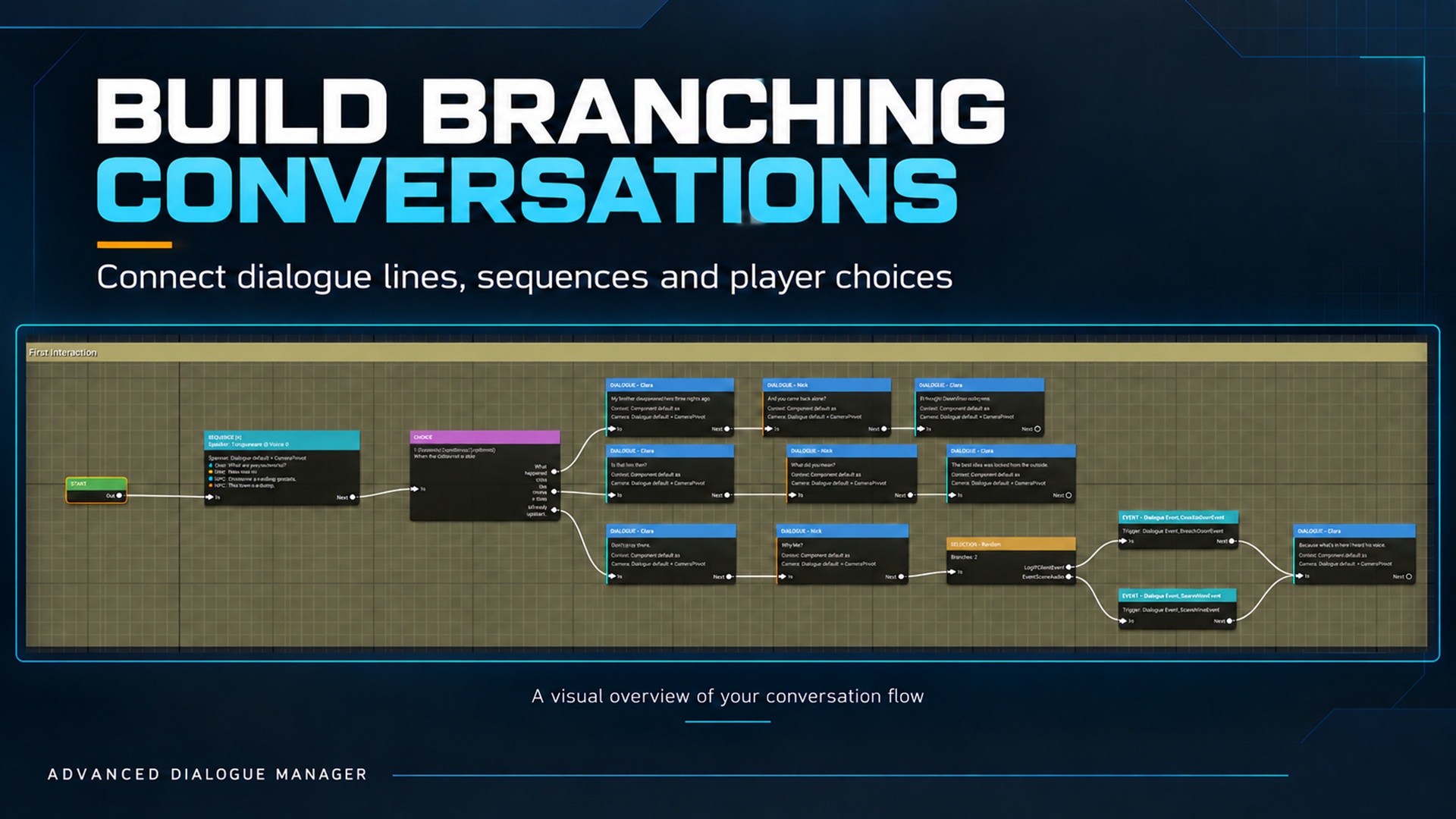
START node and dialogue graph example. Supplied product gallery image; any captions/overlays are promotional, not interactive controls.
START is the default entry used by Start Dialogue. Connect its Out pin to the first executable node. It is part of the new dialogue graph rather than a standard node you need to add.
How to use this node
Section titled “How to use this node”- Open a Dialogue Asset and right-click an empty section of the graph.
- Find the node under the category given above (START is created as part of the graph).
- Configure its fields in the Details panel and connect the flow pins shown in your editor.
- Save the asset and inspect the validation and runtime tools.
Runtime and integration notes
Section titled “Runtime and integration notes”The runtime meaning is documented above from the bundled node reference. The graph is compiled to runtime node data; this is not an Unreal Engine Event Graph node. For behavior spanning gameplay objects, see Gameplay events or Blueprint APIs.