Dialogue editor
Dialogue editor. Supplied product gallery image; any captions/overlays are promotional, not interactive controls.
Open a Dialogue Asset to edit its graph. Add nodes from the graph context menu, connect their flow pins, and edit the selected node in Details.
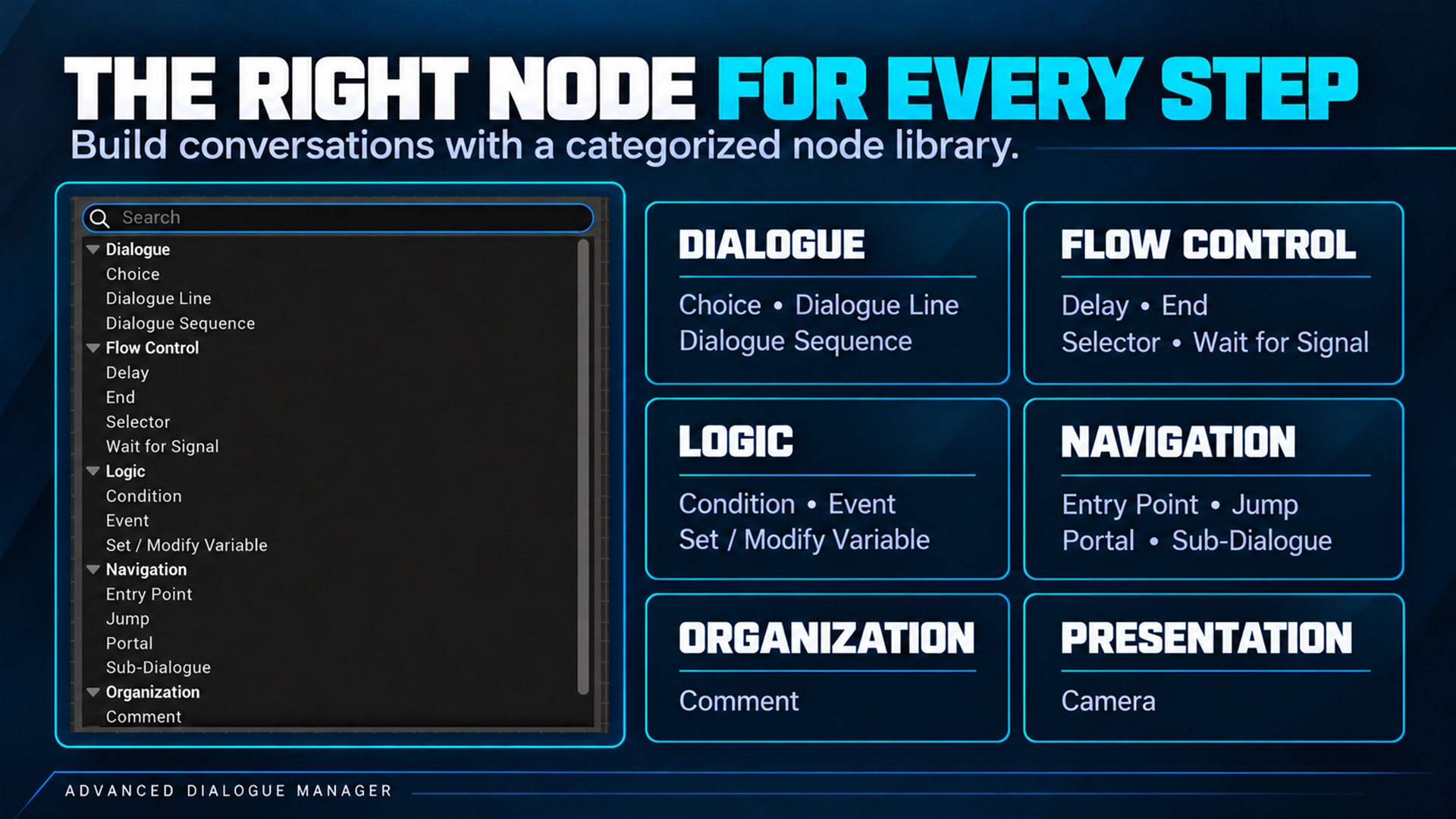
Add-node menu categories
Section titled “Add-node menu categories”Right-click an empty area of the graph. Nodes are grouped by purpose:
| Category | Nodes |
|---|---|
| Dialogue | Dialogue Line, Dialogue Sequence, Choice |
| Flow Control | Delay, Wait for Signal, Selector, End |
| Logic | Condition, Event, Set / Modify Variable |
| Navigation | Entry Point, Jump, Portal, Sub-Dialogue |
| Presentation | Camera |
| Organization | Comment |
These categories belong to the graph menu, not the Content Browser asset-creation menu. They do not change existing graphs or runtime behavior.
Navigation and organization
Section titled “Navigation and organization”- Search node text, speakers, localization IDs, variables and tags in the graph search field.
- Use Enter or Find Next to step through matches.
- Dialogue Browser supports broader dialogue browsing/reference work.
- Gameplay Tags opens tag management in Project Settings.
- Use comments and purposeful spacing to group branches.
Speaker accents identify who speaks; title colors identify node categories. Sequence previews are summaries, not the full source text. Edit entries in Details rather than assuming a truncated preview lost content.
Hover a line’s text or a Sequence entry to read its untruncated text. Sequences preview up to six entries; the tooltip on “+N more” explains where to edit the rest. “Continue: Component defaults” means the actual mode comes from the runtime component. Hover the continuation summary for the inheritance rules.
The Selector’s branch count describes configured outputs, not connected or currently eligible outputs. Its title shows the selection mode.
Delay previews explain that execution waits before following Next. Wait for Signal previews show the timeout or a missing-tag prompt. Camera previews distinguish holding a preset from restoring the current dialogue scope’s shot. Hover these previews for completion and fallback behavior.
Lines and Sequences
Section titled “Lines and Sequences”Use separate lines when you need gameplay nodes between speakers. Use a Sequence for a compact run of consecutive lines.
The editor offers conversion between a connected line chain and a Sequence. Inspect the converted result, especially optional camera settings, and save before further edits. Do not assume unrelated nodes can be merged into one Sequence.
Node, branch and entry GUIDs serve persistence and references. Recreating a node is different from changing its text: existing saves may reference its old GUID.
Validation
Section titled “Validation”Read the actual compiler/asset validation message. A failed build ending with MSB3073 or code 6 is a wrapper result; the actionable C++ or UHT error is above it.
For authored content, resolve missing speakers, missing tags, invalid return/portal targets and invalid timing settings before cooking. See debugging.