Play the included demo
The plugin includes a demo map and authored Blueprint assets under Advanced Dialogue Manager Content → Demo. You can explore this example before building your own dialogue from the Quick Start.
Open ShowCaseLevel
Section titled “Open ShowCaseLevel”- Enable Advanced Dialogue Manager in Unreal’s Plugins window and restart the editor if requested.
- Open the Content Browser or Content Drawer. In its Settings menu, enable Show Plugin Content.
- Browse to Plugins → Advanced Dialogue Manager Content → Demo.
- Double-click ShowCaseLevel, the Level asset. Do not open
ShowCaseLevel_BuiltData, which stores map build data. - Press Play to run the level in the editor (PIE), rather than using Simulate. Click the game viewport to give it input focus.
- Approach the NPC Claire and trigger the demo’s interaction input. Choose a response when choices appear, and use the dialogue UI to continue through the conversation.
The map’s Unreal asset path is /AdvancedDialogueManager/Demo/ShowCaseLevel. On disk it is Content/Demo/ShowCaseLevel.umap inside the plugin folder.
The supplied screenshots do not show the interaction key binding. To find or change it, open Demo/Input/IMC_FirstPerson and inspect the mapping for IA_Interaction; also check its handling in BP_PlayerController. Use that configured input instead of assuming a particular keyboard key.
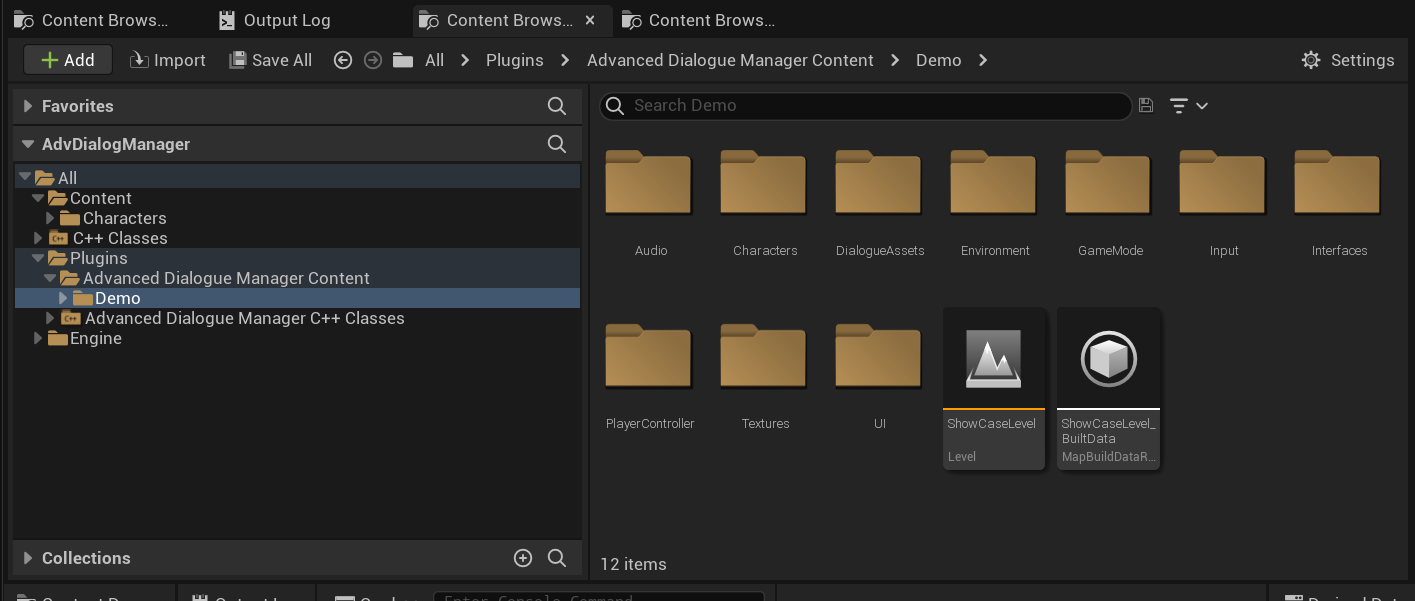
Open ShowCaseLevel from the plugin’s Demo folder. The same folder contains the assets used by the example.
Where to find the example assets
Section titled “Where to find the example assets”All paths below are relative to Advanced Dialogue Manager Content → Demo.
| Folder or asset | What to inspect |
|---|---|
ShowCaseLevel |
The demo map to open and play. |
DialogueAssets/DemoDialogue |
The graph containing the sample conversation and its follow-up entry. |
DialogueAssets/Speakers |
ClaraSpeaker and NickSpeaker, the example Speaker Assets. |
DialogueAssets/CameraPresets |
The sample CameraPreset asset. See camera presets. |
DialogueAssets/BlueprintsExample |
BP_AllDialogueBluePrintsExample, a Blueprint API reference example to inspect. |
UI/Dialogue |
The main dialogue widget, choice widget, selector widget and text style table. |
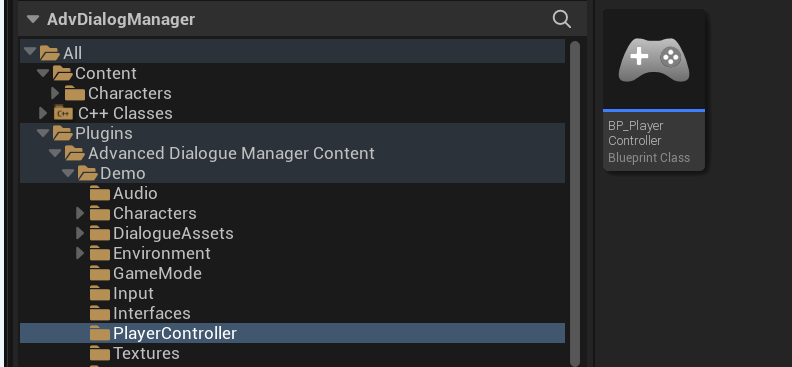
PlayerController |
BP_PlayerController, which owns the dialogue components and coordinates interaction and input. |
Characters/NPC_Claire |
BP_Claire, whose Interact event starts the conversation. |
Characters/Player_Nick |
The example player character BP_Player_Nick. |
Characters/Mannequins |
Character resources used by the demo. |
GameMode |
The demo BP_ThirdPersonGameMode. |
Input and Interfaces |
Input assets and the interaction interface used by the example. |
Audio, Textures and Environment |
Supporting presentation and scene resources. |
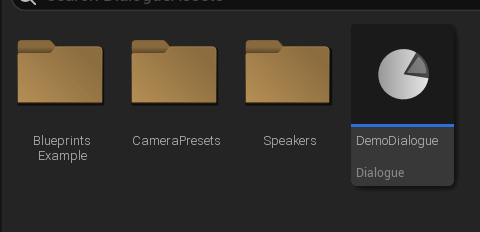
Open DemoDialogue to inspect or edit the example conversation. Speaker and camera data are separate assets in the adjacent folders.
Explore the dialogue UI
Section titled “Explore the dialogue UI”Open Demo → UI → Dialogue:
- W_MainDialogue is derived from the plugin’s
UAdvancedDialogueWidgetBaseclass and presents the current dialogue. - W_DialogueChoices is derived from
UAdvancedDialogueChoiceWidgetBaseand presents a selectable response. - W_SelectorDialogue provides the example’s visual selector.
- DT_DialogueStyle contains text styling data for the example UI.
The first two widgets demonstrate how to customize presentation using the plugin’s base classes. See widgets and input for integration details.
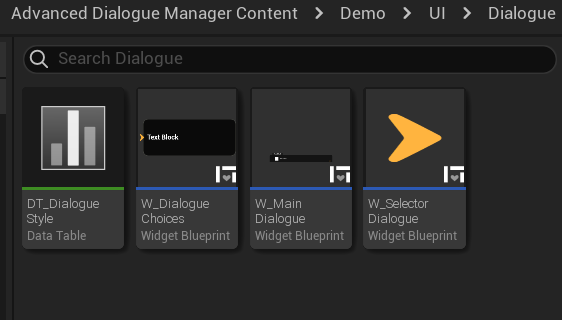
The demo provides concrete Widget Blueprints; you do not need to create replacement widgets just to explore this example.
What BP_PlayerController manages
Section titled “What BP_PlayerController manages”Open Demo → PlayerController → BP_PlayerController. The example places both AdvancedDialogue and AdvancedDialogueCamera components on the controller.
The supplied graph shows this input lifecycle:
- On Dialogue Started calls
EnterDialogueInputMode. - That event shows the mouse cursor, sets Input Mode Game and UI, focuses the dialogue widget, and ignores movement and look input.
- On Dialogue Ended hides the cursor, restores Input Mode Game Only, resets the ignored input flags, and sets
Can Interactback to true.
This is example Blueprint integration logic: the controller coordinates the dialogue, UI and player input. When adapting it, keep the start and end paths paired so movement and interaction are restored when the dialogue ends.
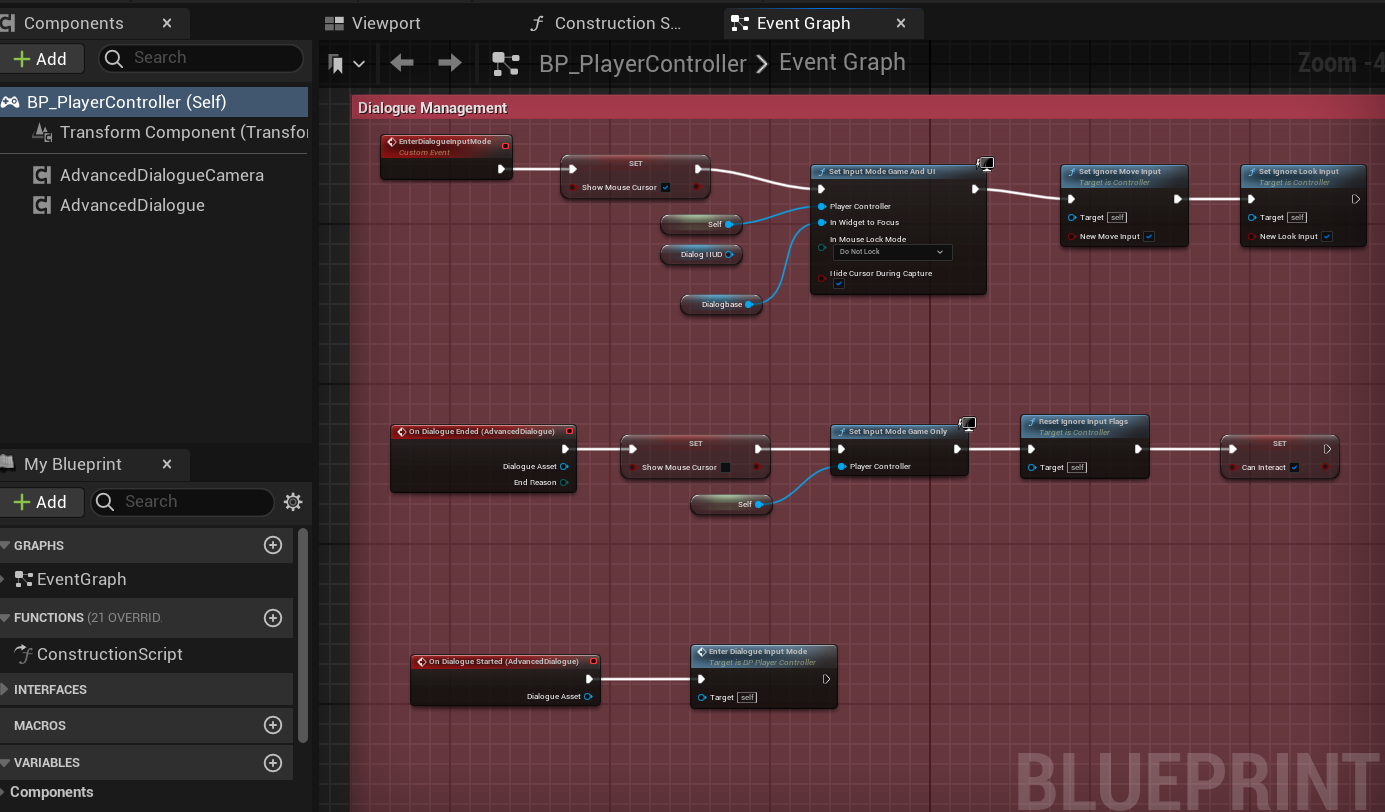
The controller owns the dialogue component. The NPC accesses that same component when an interaction starts.
How BP_Claire starts the conversation
Section titled “How BP_Claire starts the conversation”Open Demo → Characters → NPC_Claire → BP_Claire, then inspect the Event Graph.
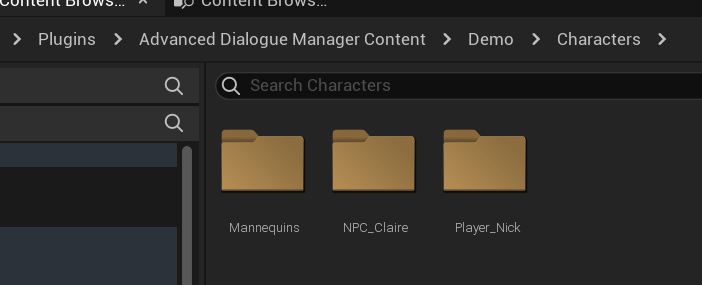
The NPC Blueprint is named BP_Claire, while the supplied Speaker Asset and tag retain the name Clara (ClaraSpeaker, Dialogue.Speaker.Clara). These are the actual example names, not two different NPCs. Use the existing names when following the screenshots.
Receive the interaction
Section titled “Receive the interaction”Event Interact, implemented from BPI Interactable, receives an Interactor Source. The example casts that object to BP_PlayerController, then uses Get Component by Class to retrieve its Advanced Dialogue Component. The Print String is a development aid.
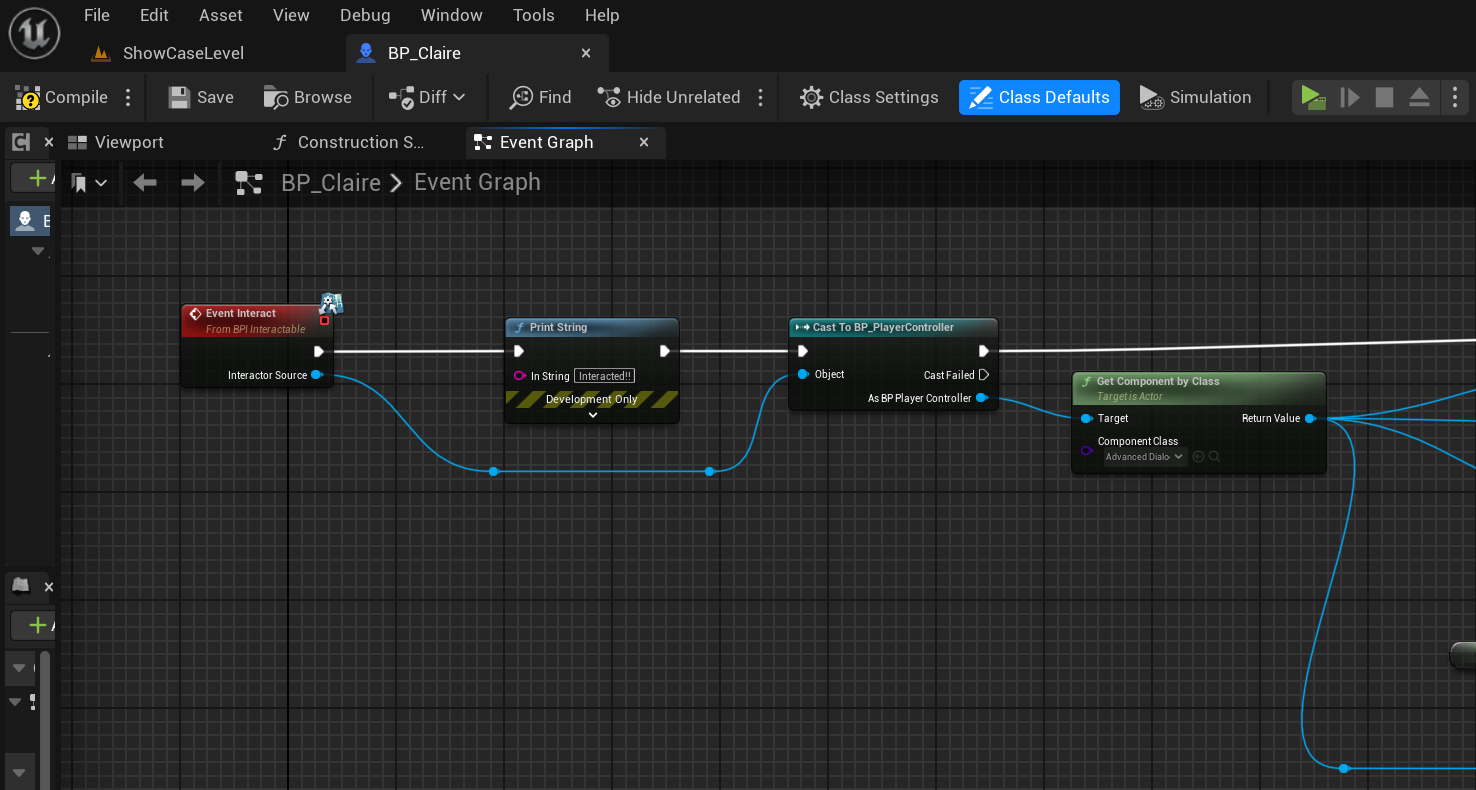
Interactor Source must be the controller expected by this cast. Passing the player character directly would not satisfy this particular Blueprint cast.
Link speakers to the actors in the level
Section titled “Link speakers to the actors in the level”Before starting the conversation, the graph calls Set Speaker Actor twice on the component:
| Speaker Asset | Actor passed to Set Speaker Actor |
|---|---|
ClaraSpeaker |
Self, the current BP_Claire instance. |
NickSpeaker |
The result of Get Player Character, player index 0. |
These links let the dialogue system resolve the actors represented by each speaker, including for camera targeting. They do not create a new Speaker Asset. See speakers for the distinction between an asset and an actor in the level.
Choose the first conversation or the follow-up
Section titled “Choose the first conversation or the follow-up”The graph checks Has Dialogue Completed for DemoDialogue, then branches:
- False: call Start Dialogue with
DemoDialogueto enter the main conversation. - True: call Start Dialogue at Entry with the same asset and the entry tag Dialogue.Entry.ClaraFollowUp.
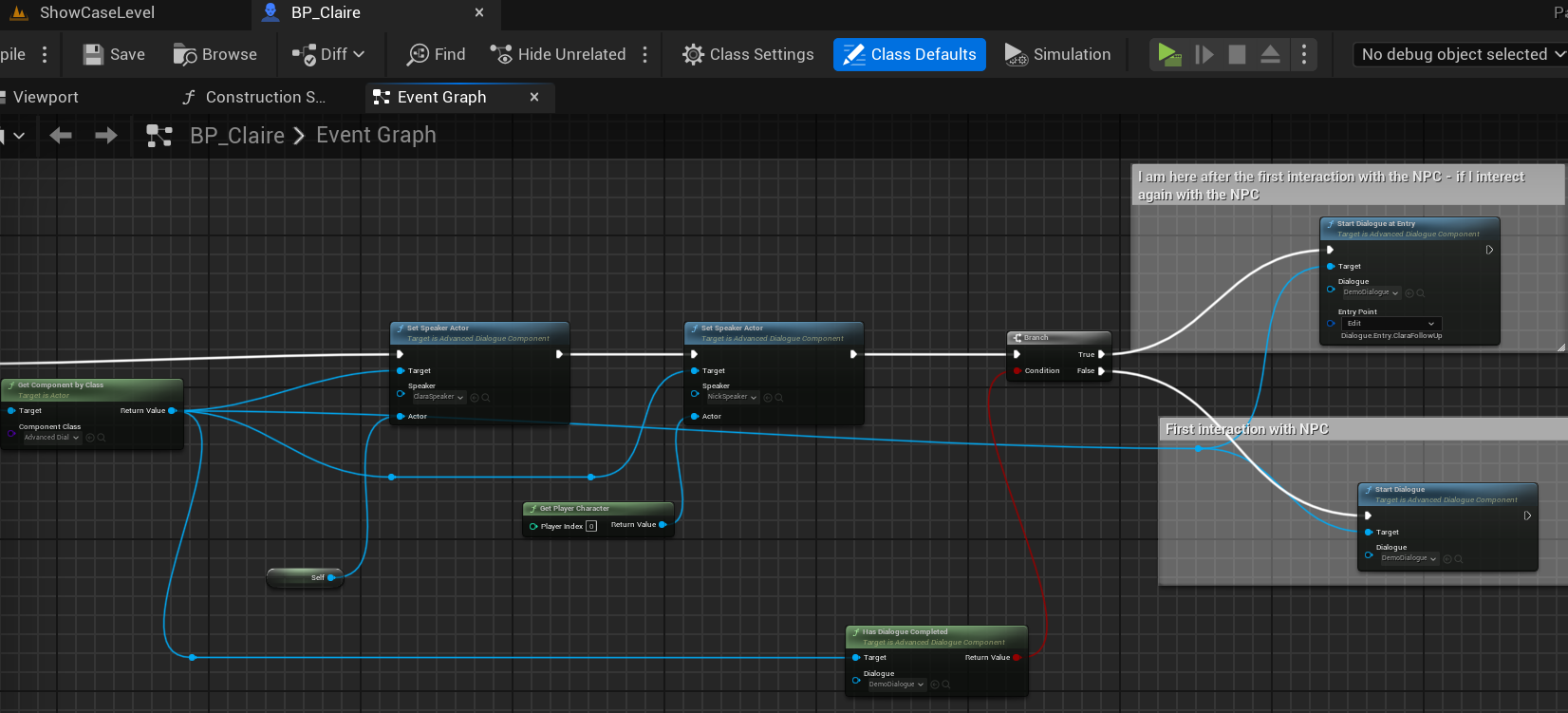
Both paths use DemoDialogue. The follow-up selects a named entry point inside that graph rather than requiring another dialogue asset.
To try the follow-up, finish the main conversation, return to gameplay, then interact with Claire again in the same play session. The check is for completion, not simply whether an interaction was attempted. Persistence across play sessions requires save and restore; do not assume that restarting PIE preserves this memory.
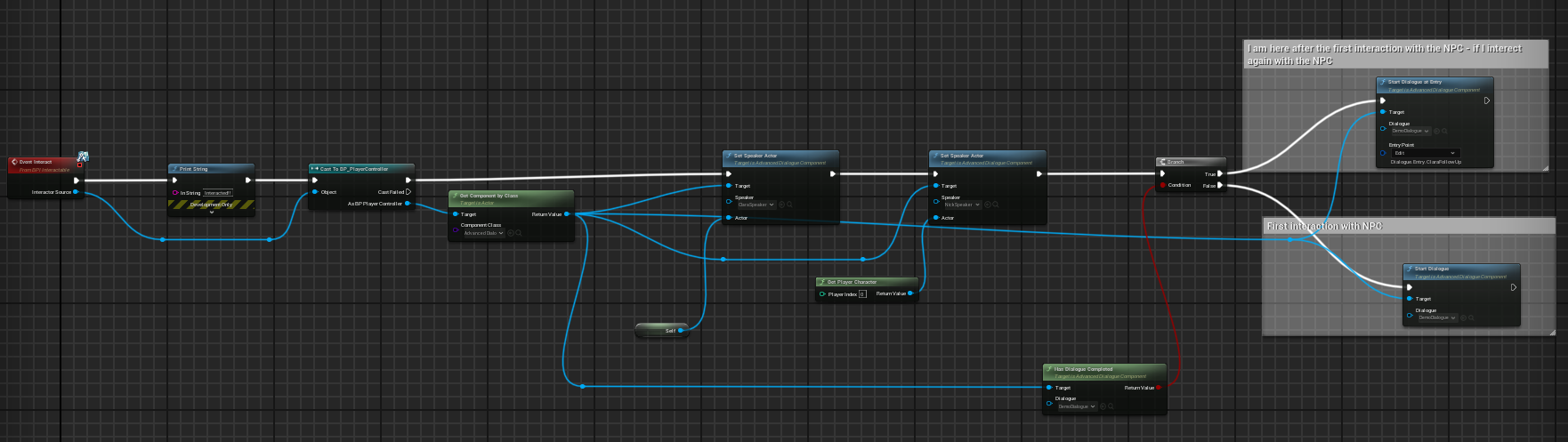
Full flow for reference. The close-ups above make the component lookup and entry-point selection easier to read.
If the demo does not start as expected
Section titled “If the demo does not start as expected”| Symptom | What to check |
|---|---|
| Plugin Demo folder is missing | Enable Show Plugin Content and confirm that the installed plugin package includes Content/Demo. |
| Wrong pawn or controller when pressing Play | In World Settings, inspect the map’s GameMode Override and its Default Pawn / Player Controller classes. The demo uses BP_Player_Nick and BP_PlayerController; a host project’s defaults may differ. |
| Interaction does nothing | Check the active input mapping, IA_Interaction handling, and whether BP_Claire’s Event Interact is reached. Its Interactor Source must pass the BP_PlayerController cast. |
| Dialogue starts but no widget appears | Inspect BP_PlayerController’s UI creation/binding and the main and choice widget configuration. |
| The camera does not target the NPC/player | Verify the two Set Speaker Actor calls run before dialogue start, using the Speaker Assets assigned in DemoDialogue, and check the selected camera preset. |
| Follow-up entry is missing | Check that DemoDialogue contains an Entry Point with Dialogue.Entry.ClaraFollowUp. The tag is supplied by Config/Tags/AdvancedDialogueExamplesTags.ini. Restart the editor after updating the plugin’s tag configuration. |
| Main conversation repeats | Inspect Has Dialogue Completed for the same DemoDialogue asset and component. Stopping a conversation early is not necessarily completion. |
This guide describes the supplied assets and original screenshots. It does not replace validation of the demo in your target engine version or packaged game. For a packaged demo, make sure ShowCaseLevel is included in the project’s cooked maps; opening it in PIE alone does not establish that it is packaged.