Voice and continuation
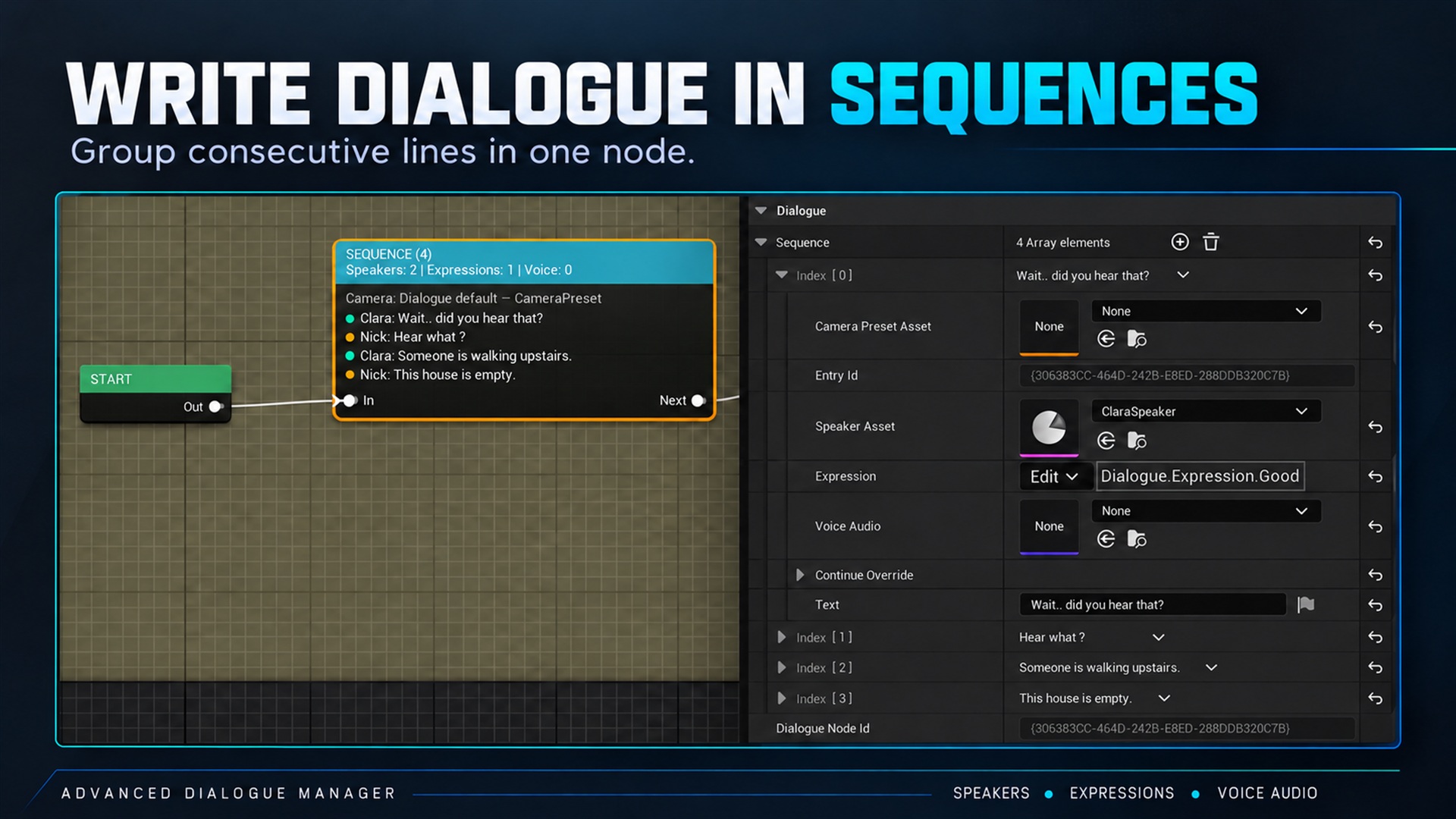
Voice and continuation. Supplied product gallery image; any captions/overlays are promotional, not interactive controls.
Choose who plays the voice
Section titled “Choose who plays the voice”Voice Playback defaults to Game Managed. Assigning Voice Audio to a line alone does not play it in this mode.
For the simplest setup, choose Built In (2D) on the component and assign a finite voice asset to each line. The component owns playback, pause and cleanup. Do not also play voice from your widget.
For custom spatial audio or another audio system, use Game Managed:
- On Dialogue Line Started, capture the context’s Line Request ID and Voice Audio.
- Start playback in your system.
- Report Notify Line Voice Started for that captured ID.
- Report Notify Line Voice Finished only on natural completion.
- Report Notify Line Voice Unavailable if playback cannot start.
- Stop interrupted audio when its line request ends; pause/resume it from dialogue state changes.
Never query a new current request ID to report the completion of an older sound.
Continue modes
Section titled “Continue modes”| Mode | Action |
|---|---|
| Manual | Wait for confirmation |
| After Voice | Wait for natural voice completion and additional delay |
| After Reading Time | Estimate from resolved localized text |
| After Duration | Use configured duration and additional delay |
Manual continuation is always available for Manual. For automatic modes, Allow Manual Continue determines whether early runtime skipping is permitted.
After Voice falls back to Manual if audio is missing, looping, unavailable or times out. Voice Timeout is a safety limit, not the intended sound length. The default is 120 seconds.
Settings resolve from component defaults, optional asset override, then optional line/entry override. Sub-Dialogues resolve their own asset settings. Editing defaults does not retime the already-playing line.
Facial animation
Section titled “Facial animation”No built-in lipsync engine is documented or shipped by this source. Use line/voice lifecycle events to connect your own animation system. Sync To Voice refers to text reveal timing, not phoneme animation.