Dialogue presentation setup
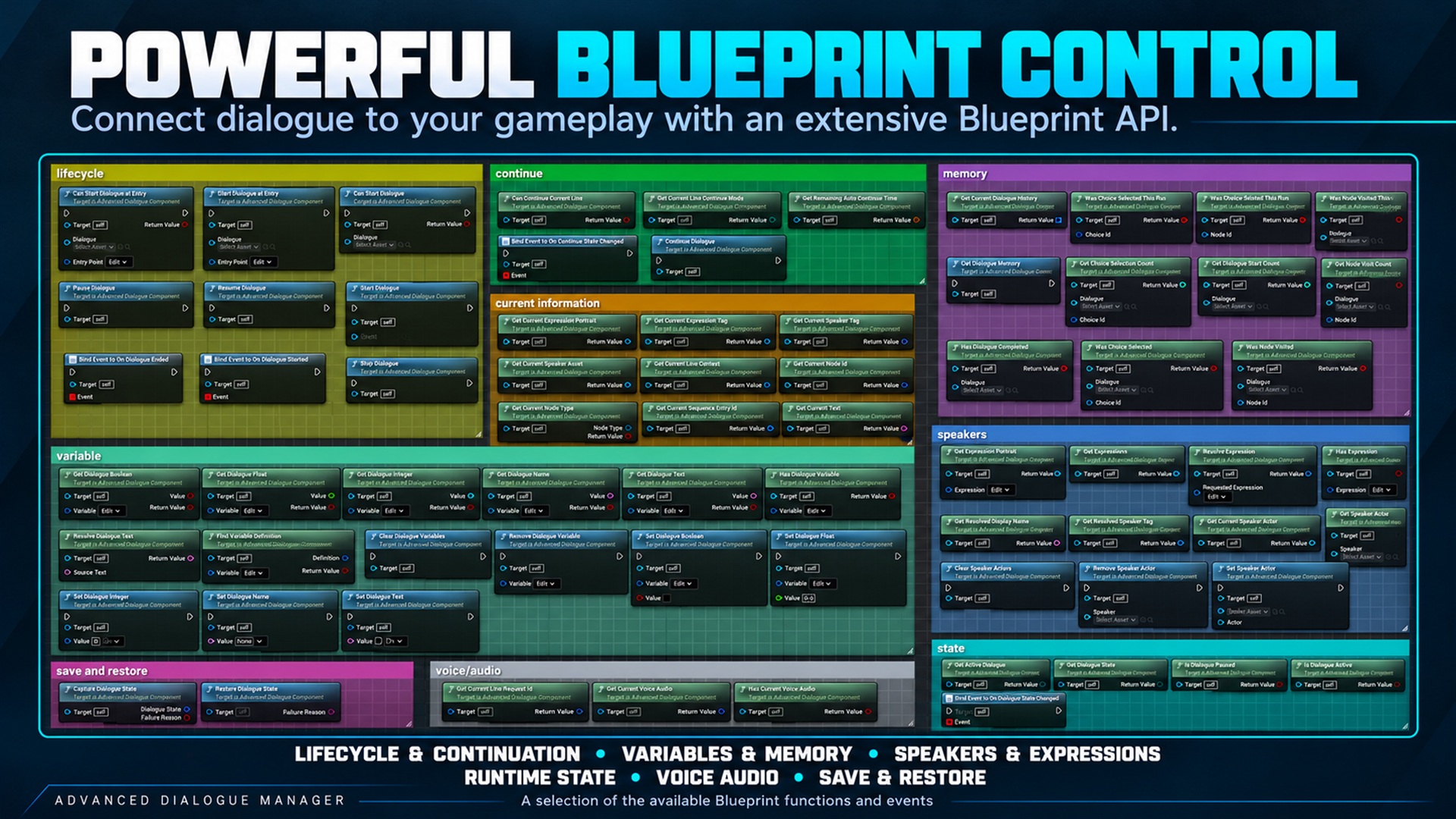
Dialogue presentation setup. Supplied product gallery image; any captions/overlays are promotional, not interactive controls.
For the complete manual, start at the manual index. The current UI chapter and first-dialogue tutorial provide the recommended learning path. This page remains available as a focused reference.
Create two Widget Blueprints: one derived from AdvancedDialogueWidgetBase,
and one derived from AdvancedDialogueChoiceWidgetBase. Assign the second
class to the main widget’s ChoiceWidgetClass. Assign the running component
on Create Widget or with Set Dialogue Component.
The standard main layout optionally binds SpeakerNameText, DialogueLineText
(or DialogueRichText), SpeakerPortraitImage, ChoicesPanel, and
ContinueButton. The choice layout optionally binds ChoiceButton,
ChoiceText, ChoiceSelector, and DisabledReasonText. Custom Blueprint
presentation events can replace these bindings; missing optional controls
are not inherently errors. Automatic choice creation needs both a ChoicesPanel
and a ChoiceWidgetClass. The game owns input mode and player input routing.
Confirm and continuation
Section titled “Confirm and continuation”Recommended Blueprint path
Section titled “Recommended Blueprint path”- Add an Advanced Dialogue Component to the actor that owns the conversation.
- Create the main widget derived from AdvancedDialogueWidgetBase and assign that component. Configure its ChoiceWidgetClass with your choice widget.
- Call Start Dialogue on the component. To validate a replacement without stopping the current conversation, call Can Start Dialogue first.
- Route player confirmation to Confirm Dialogue Input on the widget. Default choice buttons route their current visible indices automatically.
- Use On Dialogue Ended for gameplay cleanup. Stop Dialogue ends the session; Pause Dialogue and Resume Dialogue preserve it.
For fully custom presentation, use On Dialogue Line Started with its context and On Choices Requested followed by Get Current Choice Views. The expanded-pin On Dialogue Line Requested event is an alternative, not an additional required binding. The default widget already handles presentation delegates.
API categories and failure contracts
Section titled “API categories and failure contracts”- Component Lifecycle: start, stop, pause and resume. Starting an invalid asset or entry stops the existing session first, logs an error and leaves the component inactive. Entry tags never fall back to START.
- Component State: active/paused flags and current asset. Active includes pause; the current asset may be a nested Sub-Dialogue, not the root session asset.
- Component Choices: prefer the complete view array. Details contains individual getters. Invalid indices return empty text, invalid GUIDs or false; availability is a snapshot, not permission to select while paused.
- Variables / Read and Write: typed getters return false for missing variables or type mismatch and leave the output unchanged. Always branch on success. Setters ignore invalid tags or schema-rejected types; they do not convert types.
- Memory: component-lifetime history and selector state, not disk persistence. Clear Dialogue Memory also resets selector state and current-run history but does not clear variables. Clear Dialogue Variables does not clear memory or immediately reapply schema defaults.
- Widget UI / Advanced: direct continuation bypasses reveal-first behavior. Refresh From Dialogue Component rebuilds presentation and may restart reveal; it is not a per-frame update function.
Can Start queries remain execution nodes because they may prepare runtime data. Their success is a readiness check, not a promise that callbacks or gameplay will leave a subsequently started session active.
Route custom player confirmation to Confirm Dialogue Input on the main widget. The built-in Continue button uses the same command. When Allow Typewriter Skip is enabled, the first input reveals unfinished text and a subsequent input requests advancement. When disabled, confirmation is ignored until the reveal finishes. Automatic continuation still follows the component’s timing rules. Show After Typewriter displays Continue after natural or instant completion; without typewriter text, it displays immediately when continuation is allowed.
Continue Dialogue on the component is the lower-level runtime command and does not complete widget text first. Avoid binding the same physical input to both paths. Choices require an explicit selection; automatic line timing does not select a choice. Input mode, focus behavior and cursor behavior are separate responsibilities: configure the widget’s focus/cursor policies to fit other UI.
Reading presentation data
Section titled “Reading presentation data”For custom presentation, On Dialogue Line Started supplies the existing line context. Capture its Line Request ID for external voice callbacks. Get Current Line Context reads the current presentation. Existing On Dialogue Line Requested bindings remain valid; avoid presenting or playing the same line from both events.
On Choices Requested signals a new visible choice list. Get Current Choice Views returns index, stable choice ID, resolved text, enabled state and disabled reason together. Hidden choices are excluded. Pass the current Choice Index to Select Choice; do not use the source-array index or retain a view across presentations. An enabled flag is a snapshot, not a promise that selection is valid after pause, stop or a change of dialogue. The component checks selection again.
Choice highlighting means hover or navigation focus, not confirmation. The Blueprint display labels Is Choice Highlighted and On Choice Highlight Changed retain their existing underlying C++ names for compatibility. With the standard ChoiceButton, mouse hover transfers focus to the button; focus is the authoritative highlight, so a stationary pointer cannot highlight an old choice after keyboard/gamepad navigation moves elsewhere.
Event handling
Section titled “Event handling”Bind On Dialogue Event Requested for simple tag-driven Blueprint reactions, or implement AdvancedDialogueEventProvider on the resolved event context. Either route is valid. If both are configured, both receive the event: do not perform the same gameplay action twice. A warning is emitted only when neither route is available. Condition providers are different: they must return a result.
Speaker Actors and provider contracts
Section titled “Speaker Actors and provider contracts”All public function categories now share the Dialogue root, including Dialogue / UI for the two widget bases. C++ function names and signatures are documented in the API reference. Get Current Speaker is displayed as Get Current Speaker Tag to distinguish the semantic identifier from Get Current Speaker Asset.
Call Set Speaker Actor on the running Dialogue Component with the exact Speaker Asset and its Actor instance before starting or resuming dialogue. Repeat for each character. Passing None as Actor removes that speaker’s link. No role tag or linking flag is required. Get Current Speaker Actor returns the current speaker’s live Actor, or None; it never falls back to the owner. Names, portraits and expressions work without an Actor. Localization identity is maintained automatically and is not an authoring field.
Under External Logic, choose who checks conditions and who handles events: This Actor uses the actor containing the component; Another Object shows an Condition Handler or Event Handler field. Only the chosen source is used; missing objects do not fall back to the owner or a hidden field. The selected object must implement the matching provider interface. A condition provider returns a synchronous boolean; On Condition Evaluated is only a diagnostic notification. Event providers receive the same tag also broadcast through On Dialogue Event Requested.
Get Active Dialogue identifies the currently executing asset. In line contexts, Session Dialogue Asset is the root asset; Node ID can belong to a nested Sub-Dialogue. Capture the executing asset during presentation if you need an asset/node pair. Sequence Entry ID is a persistent entry identity, whereas Line Request ID identifies one presentation and changes on revisits.
Speaker display names fall back to tag text, then asset name. Expression setup in the Speaker Editor starts with the Expressions list. Default Expression then offers only tags defined in that list, plus None — Use Main Portrait. If a configured expression is removed, the default picker marks the old tag as missing: select another defined expression or None. For multiple selected speakers, the menu offers only expressions shared by all of them. Expression resolution uses the requested defined expression, then the defined default; portraits finally fall back to the speaker portrait. Missing portraits return null. Having Voice Audio configured does not mean a sound is playing.
Game-managed voice callbacks must use the request ID captured for that sound. Never query the latest ID when an old sound completes. Report natural completion, not interruption; stale and terminal callbacks are ignored. Built In mode owns its playback and does not need these notifications.
Memory is component-local. Asset/GUID queries return zero or false without history. Current-run history includes nested dialogue traversal and repeated node visits; it resets at the next session start or explicit memory clearing. Choice-widget availability is an initialization snapshot, not a live provider query. Focus, hover, highlighted state and confirmed selection are distinct.
Continuation settings
Section titled “Continuation settings”Continuation resolves Component defaults, then the Dialogue Asset policy, then the individual Line/Sequence-entry override. The graph shows the configuration source. Component inheritance is resolved at runtime; the graph cannot predict an arbitrary running component’s mode. Voice failure can subsequently fall back to Manual. Reading time and typewriter speed are independent settings.
Condition groups use All (AND) or Any (OR), with optional per-rule and whole-group inversion. Empty All is true and empty Any is false before inversion. Choice effects run in array order only when the enabled response is selected. The selected condition/event source determines the receiving object exclusively. For an external runtime object, choose Another Object and assign Condition Handler or Event Handler. Speaker Actor links do not select gameplay handlers. This Actor is the default. Internal variable conditions do not need a provider.
Verification before release
Section titled “Verification before release”Check keyboard, mouse and gamepad with and without ContinueButton, reveal-first enabled/disabled, pause, automatic protected lines, external voice failure, and hidden/disabled choices. Confirm graph summaries follow asset inheritance and per-entry overrides. Then run Save, restart, PIE, Cook, Package and the packaged executable on each claimed engine version. Compilation and headless automation alone do not validate visual layout, input focus or packaged behavior.